

Put your snort skills into practice and write snort rules to analyse live capture network traffic.
Task 1: Introduction
The room invites you a challenge to investigate a series of traffic data and stop malicious activity under two different scenarios. Let’s start working with Snort to analyse live and captured traffic.
We recommend completing the Snort room first, which will teach you how to use the tool in depth.
Exercise files for each task are located on the desktop.
Take note of the following as a refresher of a few things learned from the Snort room.
- /var/log/snort — is the default location of the log file
- /etc/snort/snort.conf — default location of the configuration file
- /etc/snort/rules/local.rules — default location of the local rules
In this room, we store log files created, and the local rules used, in the current directory for each task.
Basic syntax of commands used in this room are:
sudo snort -A full -r mx-3.pcap -c local.rules -l . #Investigating a pcap file
sudo snort -r ,snort.log.file> #reading dumped log file
sudo nano local.rules #editing the local rule with a text editor, nano
cat alert # reading the contents of the alert file
sudo rm alert #deleting the alert file
sudo rm <snort.log.file> #deleting the log file
Refer back to Snort room if still not too confident with the parameters used.
Task 2: Writing IDS Rules (HTTP)
Let’s create IDS Rules for HTTP traffic!
Answer the questions below
Navigate to the task folder.
Use the given pcap file.
Write rules to detect “all TCP port 80 traffic” packets in the given pcap file.
What is the number of detected packets?
Note: You must answer this question correctly before answering the rest of the questions in this task.
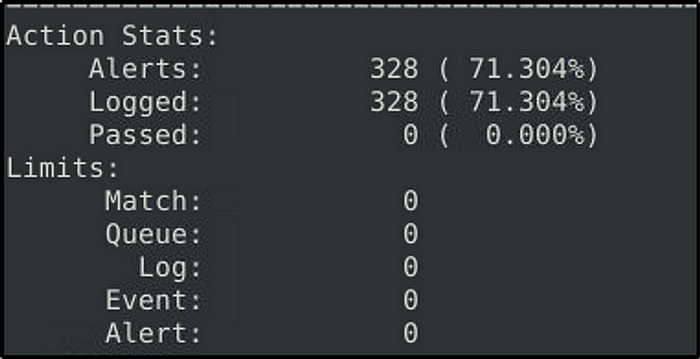
Answer: 328
Let’s write the rule. The rule created would detect all TCP port 80 traffic from both directions.
- alert tcp any 80 <> any any (msg:”TCP port 80 inbound traffic detected”;sid:1000000000001; rev :1)
- alert tcp any any <> any 80 (msg:”TCP port 80 outbound traffic detected”;sid:1000000000002; rev :1)

Now execute Snort with the rules created applied.
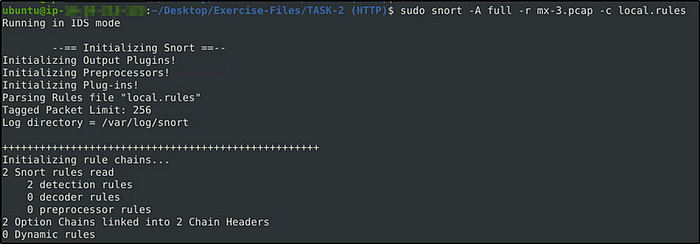
We can see that the rules we created were applied. Our rule detected 328 packets.
Investigate the log file.
What is the destination address of packet 63?
Answer: 145.254.160.237
Read the log file and include parameter “-n ”. This parameter specify the number of packets that Snort will read.
sudo snort -r snort.log.1688562201 -n 63
Investigate the log file.
What is the ACK number of packet 64?
sudo snort -r snort.log.1688562201 -n 64Answer: 0x38AFFFF3

Investigate the log file.
What is the SEQ number of packet 62?
Answer: 0x38AFFFF3
sudo snort -r snort.log.1688562201 -n 62
Investigate the log file.
What is the TTL of packet 65?
Answer: 128
sudo snort -r snort.log.1688562201 -n 65
Investigate the log file.
What is the source IP of packet 65?
Answer: 145.254.160.237
See image above.
Investigate the log file.
What is the source port of packet 65?
Answer: 3372
See image above.
Task 3: Writing IDS Rules (FTP)
Let’s create IDS Rules for FTP traffic!
See this link for FTP return codes. https://en.wikipedia.org/wiki/List_of_FTP_server_return_codes
Answer the questions below
Navigate to the task folder.
Use the given pcap file.
Write rules to detect “all TCP port 21” traffic in the given pcap.
What is the number of detected packets?
Answer: 614
The rule below is to detect ftp traffic from both directions.
- alert tcp any 21 <> any any (msg:”Outbound ftp traffic detected”;sid:1000000000003; rev :1)
- alert tcp any any <> any 21 (msg:”Inbound ftp traffic detected”;sid:1000000000004; rev :1)
Let Snort investigate the file with the rule created.sudo snort -A full -r ftp-png-gif.pcap -c local.rules -l .
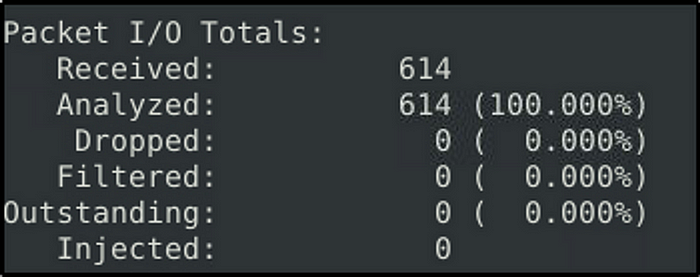
Investigate the log file.
What is the FTP service name?
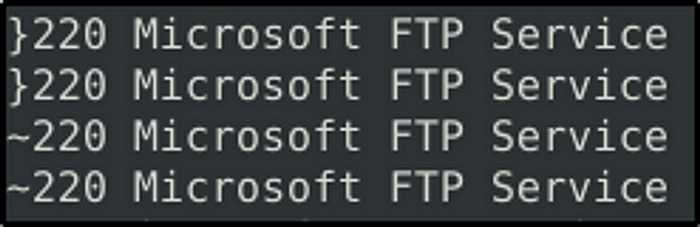
Answer: Microsoft FTP Service
We will use “strings” command to print out interesting characters in the log file and look for the character “220”.
sudo strings snort.log.1688564350 | grep 220 | headThe FTP response code 220 is part of the 2xx series, which represents a positive completion reply. In particular, the code 220 signifies a successful response that indicates the FTP server is ready for a new user to authenticate or initiate a new FTP session.
Clear the previous log and alarm files.
Deactivate/comment on the old rules.
Write a rule to detect failed FTP login attempts in the given pcap.
What is the number of detected packets?
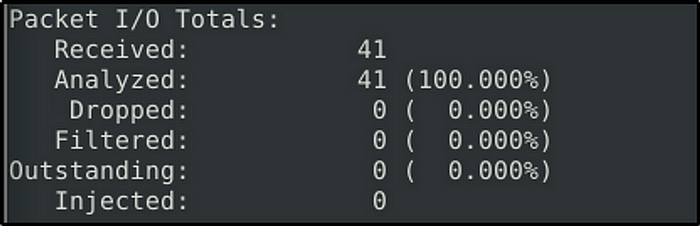
Answer: 41
“530” is the FTP code that denotes unsuccessful FTP login attempts. We will use that code in our rule to detect failed FTP login attempts. Refer back to the Non-Payload Detection Rule Options. The option that we would use is “content”. So basically any FTP attempts that returns “530” code will be flagged.
- alert tcp any any <> any 21 (msg:”Failed ftp login attempt”;content:”530″;sid:1000000000005
Clear the previous log and alarm files.
Deactivate/comment on the old rule.
Write a rule to detect successful FTP logins in the given pcap.
What is the number of detected packets?
Answer: 1
Same principle will be applied, except that the code to be used is “230” for a successful FTP login
- alert tcp any any <> any 21 (msg:”Successful ftp login”;content:”230″;sid:1000000000006; rev :1)

Clear the previous log and alarm files.
Deactivate/comment on the old rule.
Write a rule to detect failed FTP login attempts with a valid username but a bad password or no password.
What is the number of detected packets?
Answer: 42
Change the code to “331” for an FTP login attempt where the username is valid, but the password is not.
- alert tcp any any <> any 21 (msg:”Invalid Password”;content:”331″;sid:1000000000007; rev :1)

Clear the previous log and alarm files.
Deactivate/comment on the old rule.
Write a rule to detect failed FTP login attempts with “Administrator” username but a bad password or no password.
What is the number of detected packets?
Answer: 7
We will be using two options in this rule. One, to detect code “331”, and one to detect any attempts with the username “Administrator”
- alert tcp any any <> any 21 (msg:”Invalid Admin Password”;content:”331″;content:”Administrator”;sid:1000000000008; rev :1)
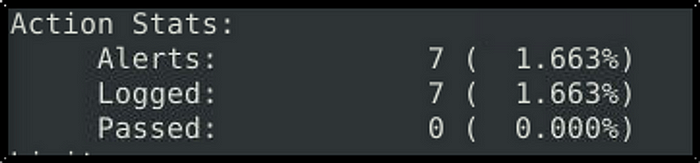
The result trimmed down to 7 packets.
Task 4: Writing IDS Rules (PNG)
Refer to this wikipedia site for the list of signature files. https://en.wikipedia.org/wiki/List_of_file_signatures
Let’s create IDS Rules for PNG files in the traffic!
Answer the questions below
Navigate to the task folder.
Use the given pcap file.
Write a rule to detect the PNG file in the given pcap.
Investigate the logs and identify the software name embedded in the packet.
Answer: Adobe ImageReady
- alert tcp any any -> any any (msg:”PNG File Detected”; content:”|89 50 4E 47 0D 0A 1A 0A|”; depth:8;sid:10000000009)
Let’s break down the components of this rule:
alert tcp any any -> any any: This specifies the network traffic that the rule will inspect. In this case, it matches any TCP traffic from any source IP and any source port to any destination IP and any destination port.(msg:"PNG File Detected";): This is an optional part of the rule that adds a custom alert message. In this example, it sets the message to “PNG File Detected.” You can customize the message as per your preference.content:"|89 50 4E 47 0D 0A 1A 0A|"; depth:8;: This is the key part of the rule that matches the content of the network traffic. It uses thecontentkeyword to specify the hexadecimal values that represent the PNG file header signature. Thedepthkeyword is used to limit the search to the first 8 bytes of the packet payload, which is sufficient to match the PNG file signature.
Only one packet was logged.
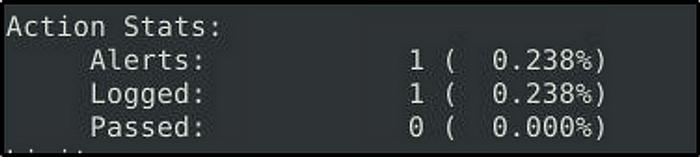
Let’s look into the pcap file and search for interesting strings related to software.
sudo strings ftp-png-gif.pcap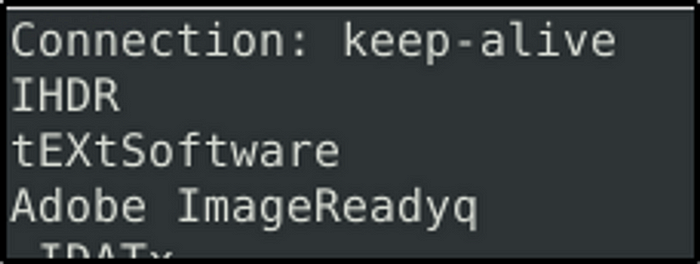
Clear the previous log and alarm files.
Deactivate/comment on the old rule.
Write a rule to detect the GIF file in the given pcap.
Investigate the logs and identify the image format embedded in the packet.
Answer: GIF89a
- alert tcp any any -> any any (msg:”GIF File Detected”; content:”GIF89a”; depth:6;sid:10000000010)
“content:”GIF89a”; depth:6;” Is the content-matching part of the rule. It uses the content keyword to specify the ASCII string “GIF89a,” which represents the GIF file header. The “depth” keyword searches for the first 6 bytes of the packet.
sudo strings snort.log.1688600077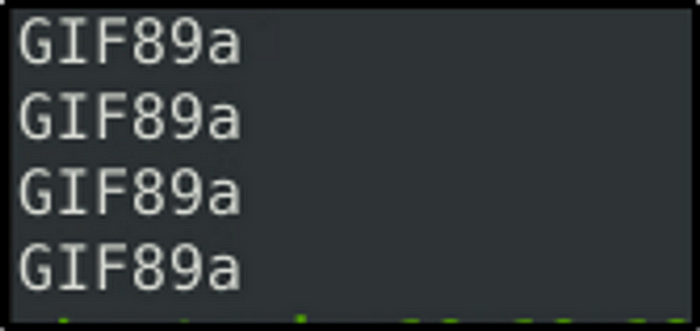
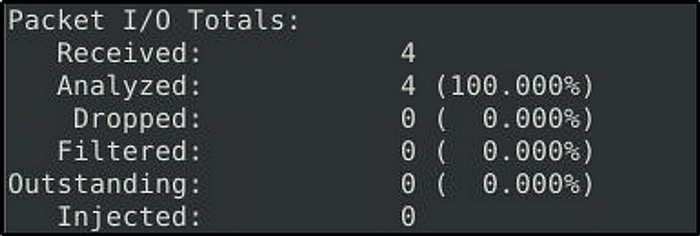
Snort detected only 4 packets.
Task 5: Writing IDS Rules (Torrent Metafile)
Let’s create IDS Rules for torrent metafiles in the traffic!
Answer the questions below
Navigate to the task folder.
Use the given pcap file.
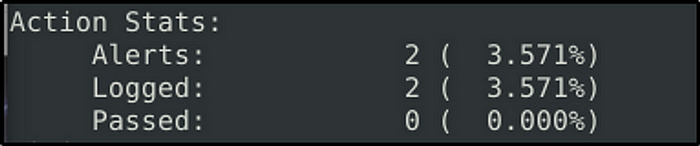
Write a rule to detect the torrent metafile in the given pcap.
What is the number of detected packets?
Answer: 2
Torrent files have an extension of “.torrent”. Knowing this, we will use the option “content” to detect torrent files in the traffic. “nocase” option is added to disable case sensitivity.
- alert tcp any any -> any any (msg:”Torrent File Detected”; content:”.torrent”; nocase;sid:10000000011)
Investigate the log/alarm files.
What is the name of the torrent application?
Answer: bittorrent
sudo strings snort.log.1688600657
The printed result would answer the rest of the questions in this task.
Investigate the log/alarm files.
What is the MIME (Multipurpose Internet Mail Extensions) type of the torrent metafile?
Answer: application/x-bittorrent
Investigate the log/alarm files.
What is the hostname of the torrent metafile?
Answer: tracker2.torrentbox.com
Task 6: Troubleshooting Rule Syntax Errors
Let’s troubleshoot rule syntax errors!
Answer the questions below
In this section, you need to fix the syntax errors in the given rule files.
You can test each ruleset with the following command structure;
sudo snort -c local-X.rules -r mx-1.pcap -A consoleFix the syntax error in local-1.rules file and make it work smoothly.
What is the number of the detected packets?
Answer: 16
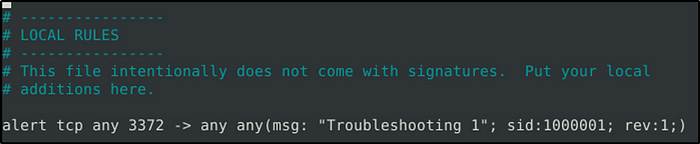
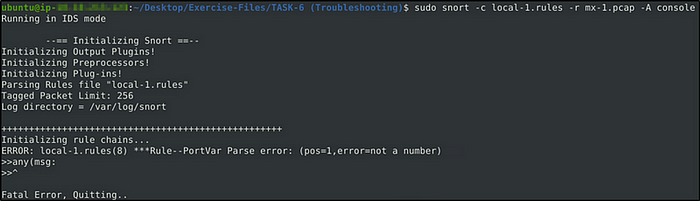
Testing the rule, the error is identified near “any”. Spacing is what caused the error. To fix this, simply put a space between “any” and “(msg”.
- alert tcp any 3372 -> any any (msg: “Troubleshooting 1”; sid:1000001; rev:1;)
Now, we run Snort.
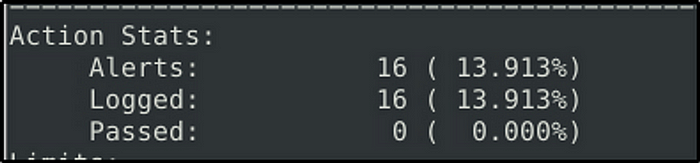
Fix the syntax error in local-2.rules file and make it work smoothly.
What is the number of the detected packets?
Answer: 68
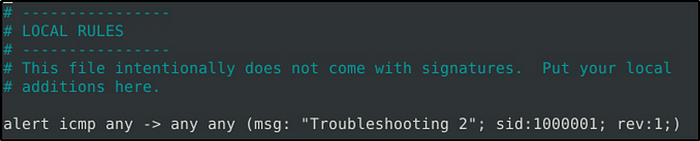
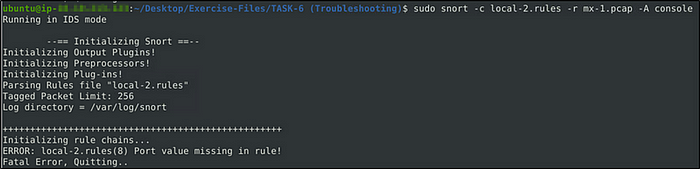
The rule is missing a port value. The following is the fixed rue.
- alert icmp any any -> any any (msg: “Troubleshooting 2”; sid:1000001; rev:1;)
When implemented, it detected 68 packets.

Fix the syntax error in local-3.rules file and make it work smoothly.
What is the number of the detected packets?
Answer: 87
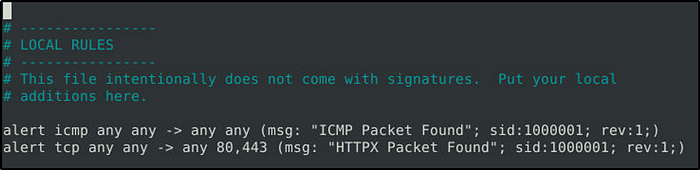

The rule has duplicate sids. Modify the sid so they have unique id values.
- alert icmp any any -> any any (msg: “ICMP Packet Found”; sid:1000001; rev:1;)
- alert tcp any any -> any 80,443 (msg: “HTTPX Packet Found”; sid:1000002; rev:1;)

Fix the syntax error in local-4.rules file and make it work smoothly.
What is the number of the detected packets?
Answer: 90


There are two errors here, all in the second rule. The “msg” should end with “;” not “:”, and a duplicate “sid” value. The following fixed the errors.
- alert icmp any any -> any any (msg: “ICMP Packet Found”; sid:1000001; rev:1;)
- alert tcp any 80,443 -> any any (msg: “HTTPX Packet Found”; sid:1000002; rev:1;)
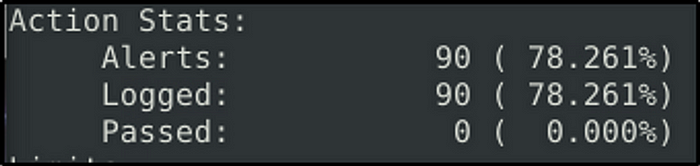
Fix the syntax error in local-5.rules file and make it work smoothly.
What is the number of the detected packets?
Answer: 155
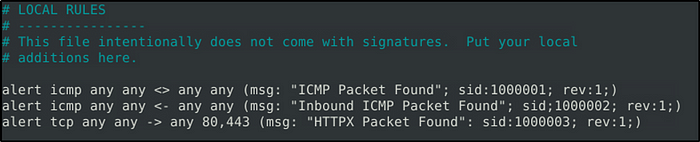

The Snort room covered this in Task 9, that there is no “<-” operator in Snort.
- alert icmp any any <> any any (msg: “ICMP Packet Found”; sid:1000001; rev:1;)
- alert icmp any any <> any any (msg: “Inbound ICMP Packet Found”; sid:1000002; rev:1;)
- alert tcp any any -> any 80,443 (msg: “HTTPX Packet Found”; sid:1000003; rev:1;)

Fix the logical error in local-6.rules file and make it work smoothly to create alerts.
What is the number of the detected packets?
Answer: 2

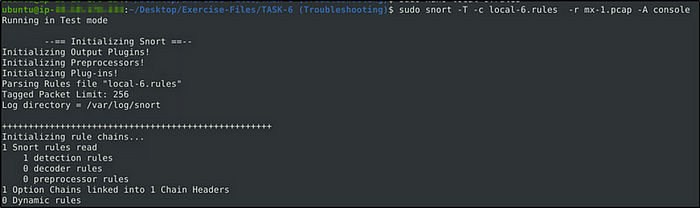
The rule works but is not effective in capturing traffics with “GET” value in any case format. So to be able to detect traffic, whether capitalized or in lowercase, we will add the option “nocase” in the rule.
- alert tcp any any <> any 80 (msg: “GET Request Found”; content:”|67 65 74|”;nocase; sid: 100001; rev:1;)
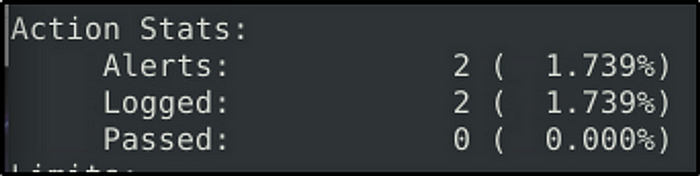
Fix the logical error in local-7.rules file and make it work smoothly to create alerts.
What is the name of the required option:
Answer: msg
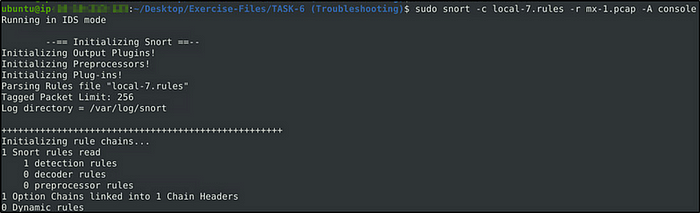

The rule works, it does not make sense because it does not say what it tries to detect. If we refer back to Wikipedia on the list of file signatures, the hex code is of an “html” file. So we will add “msg:“html detected””
- alert tcp any any <> any 80 (msg:”html detected”;content:”|2E 68 74 6D 6C|”; sid: 100001; rev:1;)

Task 7: Using External Rules (MS17–010)
Let’s use external rules to fight against the latest threats!
Answer the questions below
Navigate to the task folder.
Use the given pcap file.
Use the given rule file (local.rules) to investigate the ms1710 exploitation.
What is the number of detected packets?
Answer: 25154
sudo snort -A full -c local.rules -r ms-17-010.pcap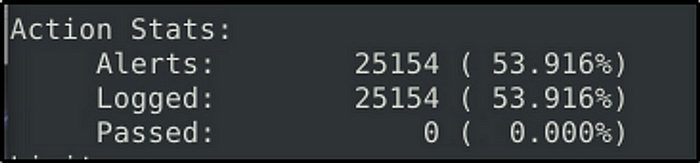
Clear the previous log and alarm files.
Use local-1.rules empty file to write a new rule to detect payloads containing the “\IPC$” keyword.
What is the number of detected packets?
Answer: 12
We can copy the rule from “local.rule”
- alert tcp any any -> any 445 (msg: “Exploit Detected!”; flow: to_server, established; content: “IPC$”;sid: 20244225; rev:3;)

sudo snort -A full -c local-1.rules -r ms-17-010.pcap -l .
Investigate the log/alarm files.
What is the requested path?
Answer: \\192.168.116.138\IPC$
sudo strings snort.log.1688603267Let’s look into the log file created.

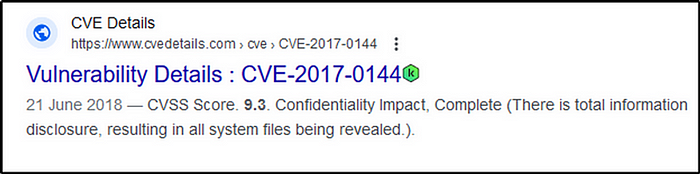
What is the CVSS v2 score of the MS17–010 vulnerability?
Answer: 9.3
A simple google search would give us the result.
Task 8: Using External Rules (Log4j)
Let’s use external rules to fight against the latest threats!
Answer the questions below
Navigate to the task folder.
Use the given pcap file.
Use the given rule file (local.rules) to investigate the log4j exploitation.
What is the number of detected packets?
Answer: 26
sudo snort -c local.rules -r log4j.pcap -A full -l .
Investigate the log/alarm files.
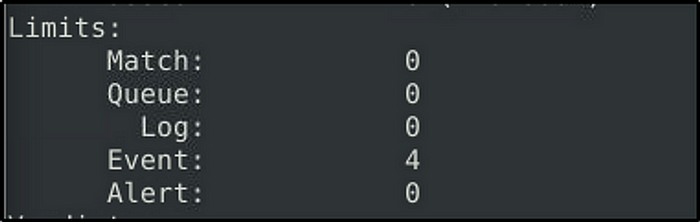
How many rules were triggered?
Answer: 4
Investigate the log/alarm files.
What are the first six digits of the triggered rule sids?
Answer: 210037
sudo cat snort.log.1688603798 | grep -r -e sid“grep” is used print that matches the pattern “sid”.
We will get a few results, but we only need the first six digits of the triggered rule sids.

Clear the previous log and alarm files.
Use local-1.rules empty file to write a new rule to detect packet payloads between 770 and 855 bytes.
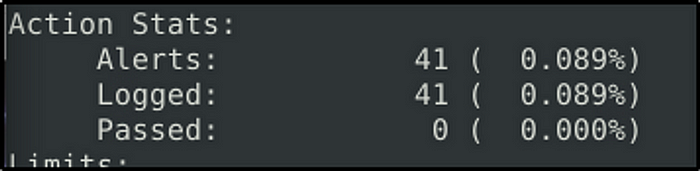
What is the number of detected packets?
Answer: 41
- alert tcp any any -> any any (msg: “Packet payload size between 770 and 855 bytes detected”; dsize: 770<>855; sid: 1000001;)
The option “dsize” is what we want to filter packet payload size.
After we fire up Snort, we would get 42 detected packets.
Investigate the log/alarm files.
What is the name of the used encoding algorithm?
Answer: Base64
sudo strings snort.log.1689857521
Investigate the log/alarm files.
What is the IP ID of the corresponding packet?
Answer: 62808
sudo strings alert | grep -e 45.155.205.233 -e IDWe will look into the alert file and grep the identified IP address and the strings “ID”.

Investigate the log/alarm files.
Decode the encoded command.
What is the attacker’s command?

What is the CVSS v2 score of the Log4j vulnerability?
Answer: 9.3
Google Log4j vulnerability.

Task 9: Conclusion
Congratulations! Are you brave enough to stop a live attack in the Snort2 Challenge 2 room?
Hope you enjoyed the room and my write-up.
Thanks for reading 🙂
Happy learning.
 Igor_sec's Blog
Leave a comment