

Learn the fundamentals of packet analysis with Wireshark and how to find the needle in the haystack!
Link: https://tryhackme.com/room/wiresharkpacketoperations
“In this room, we will cover the fundamentals of packet analysis with Wireshark and investigate the event of interest at the packet-level. Note that this is the second room of the Wireshark room trio, and it is suggested to visit the first room (Wireshark: The Basics) to practice and refresh your Wireshark skills before starting this one.”
Task 2: Statistics | Summary
Investigate the resolved addresses.
What is the IP address of the hostname starts with “bbc”?
Ans: 199.232.24.81
Go to Statistic then Resolved Addresses. Filter by typing the strings of the host name that we are after.


What is the number of IPv4 conversations?
Ans: 435
Go to Statistics then Conversations. IPv4 column contains all IPv4 conversations.


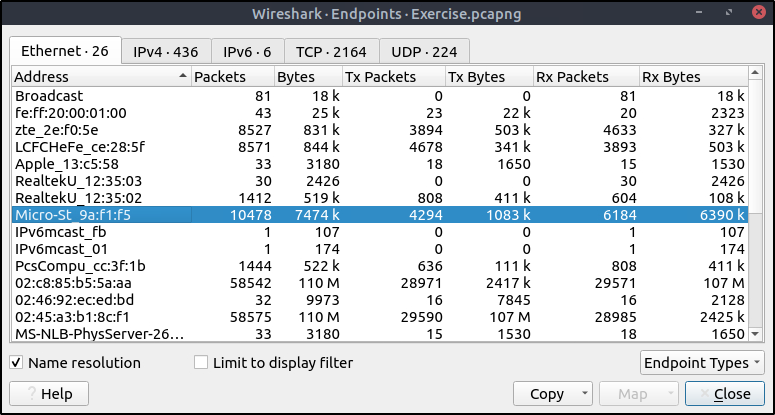
How many bytes (k) were transferred from the “Micro-St” MAC address?
Ans: 7474
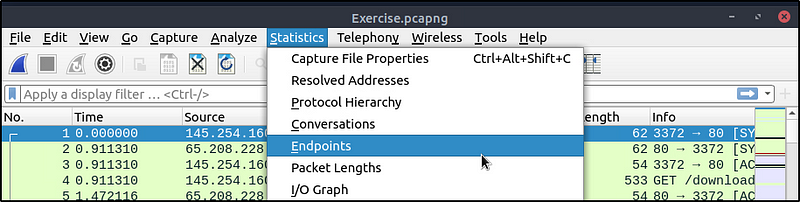
Go to Statistics then Endpoint.
Click the Name resolution to resolve host names of the endpoints.
What is the number of IP addresses linked with “Kansas City”?Ans: 4Still on Endpoints, go to IPv4 tab then “City” column

Which IP address is linked with “Blicnet” AS Organisation?
Ans: 188.246.82.7
Still on Endpoint, go to “As Organization” Column

Task 3: Statistics | Protocol Details
What is the most used IPv4 destination address?
Ans:10.100.1.33
Go to Statistics then IPV4 Statistics then All Addresses. Sort it by Count.


What is the max service request-response time of the DNS packets?
Ans: 0.467897
Go to Statistics then DNS.


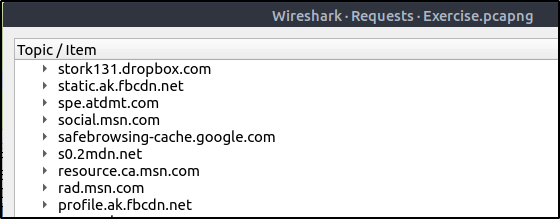
What is the number of HTTP Requests accomplished by “rad[.]msn[.]com?
Ans: 39
Go to Statistics then HTTP then Requests.

Look for the domain name and scroll all the way to the right.

Task 5: Packet Filtering | Protocol Filters
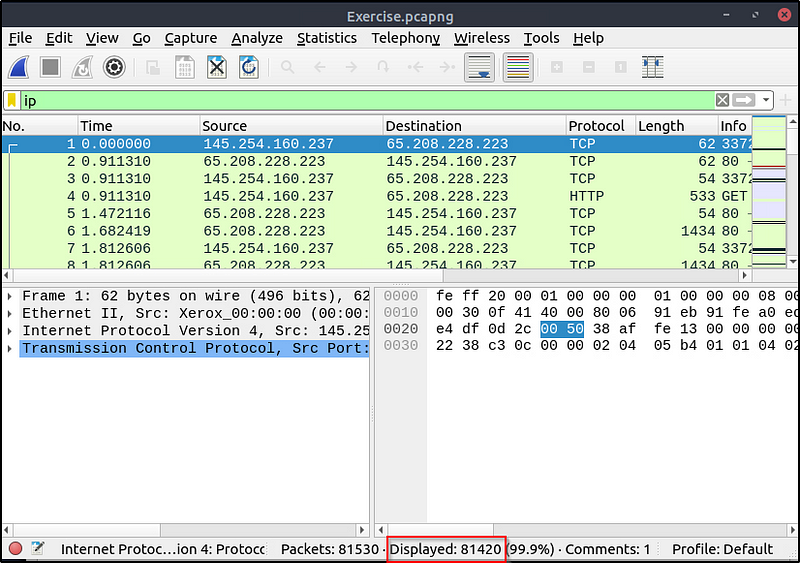
What is the number of IP packets?
Ans: 84120
Filter out only packets with ip
What is the number of packets with a “TTL value less than 10”?
Ans: 66
ip.ttl <= 10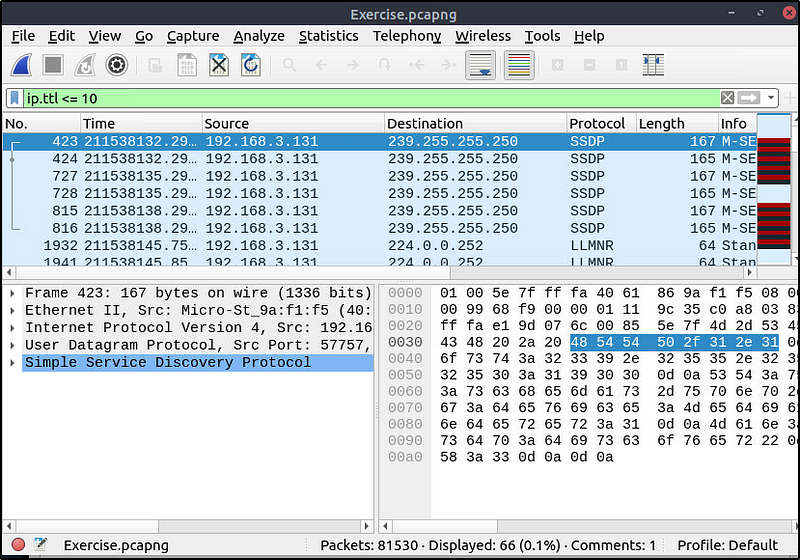
What is the number of packets which uses “TCP port 4444”?
Ans: 632
tcp.port == 4444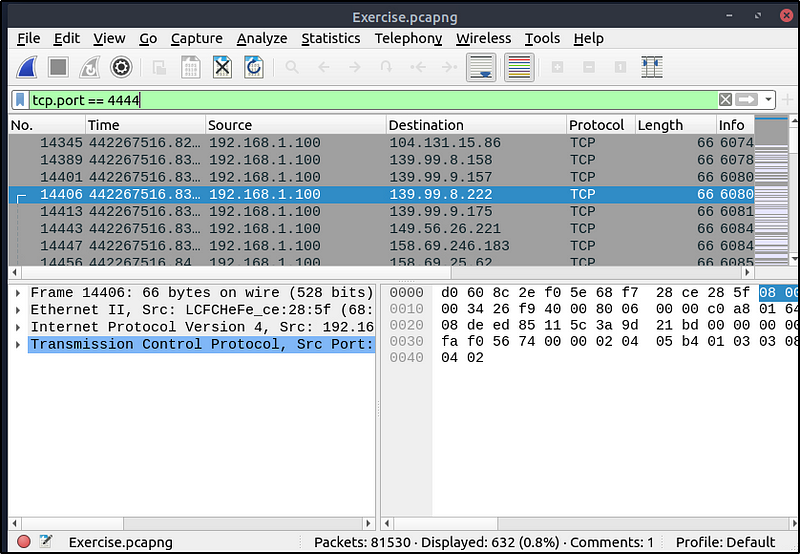
What is the number of “HTTP GET” requests sent to port “80”?
Ans: 527
This filter joins two filters together. This filters out only “GET” http request method that uses tcp port 80.
http.request.method == "GET" && tcp.port == 80
What is the number of “type A DNS Queries”?
Ans: 51
Let’s build a filter using the Display Filter Expression under the Analyze menu.

Search for dns then select dns.query.type A then click Ok.

Let’s add another filter to show all DNS responses

dns.qry.type == 1 && dns.flags.response == 1
Task 6: Advanced Filtering
Find all Microsoft IIS servers. What is the number of packets that did not originate from “port 80”?
Ans: 21
This filters all http servers that contains the string “IIS” but excluding packets from source port 80.
http.server contains "IIS" && tcp.srcport != 80
Find all Microsoft IIS servers. What is the number of packets that have “version 7.5”?
Ans: 71
The following filters all http server that contains “IIS” and matches the string “7.5”.
http.server contains "IIS" && http.server matches "7.5"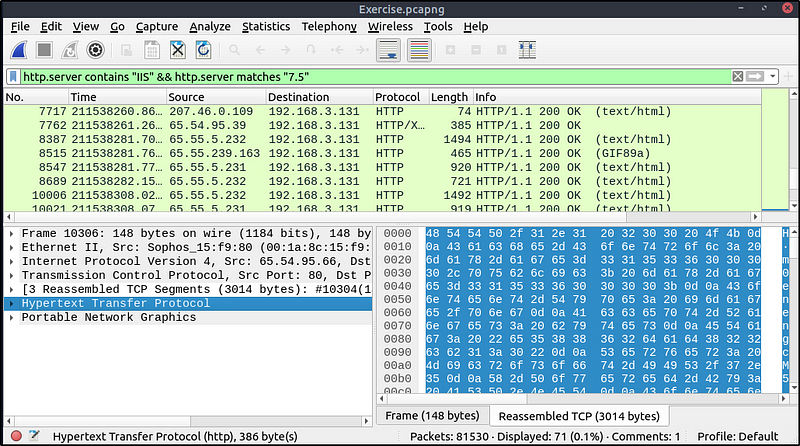
What is the total number of packets that use ports 3333, 4444 or 9999?
Ans: 2235
Use curly braces and put spaces between strings.
tcp.port in {3333 4444 9999}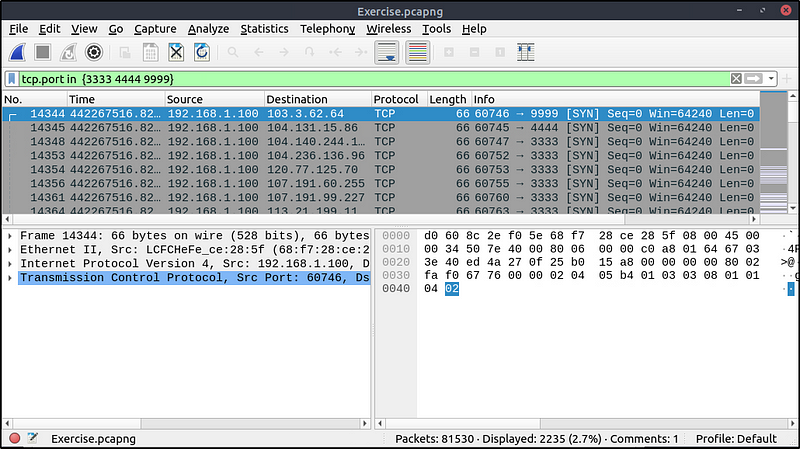
What is the number of packets with “even TTL numbers”?
Ans: 77289
What this filter does is, it will convert all ip.ttl fields to string values, and list ttl values only with even numbers.
string(ip.ttl) matches "[02468]$"
Change the profile to “Checksum Control”. What is the number of “Bad TCP Checksum” packets?
Ans: 34185
Go to Edit then Configuration Profiles. Select the “Checksum Control” profile listed.


We will then open the Display Filter Expression window and create a filter for a bad tcp checksum.

tcp.checksum.status == 0
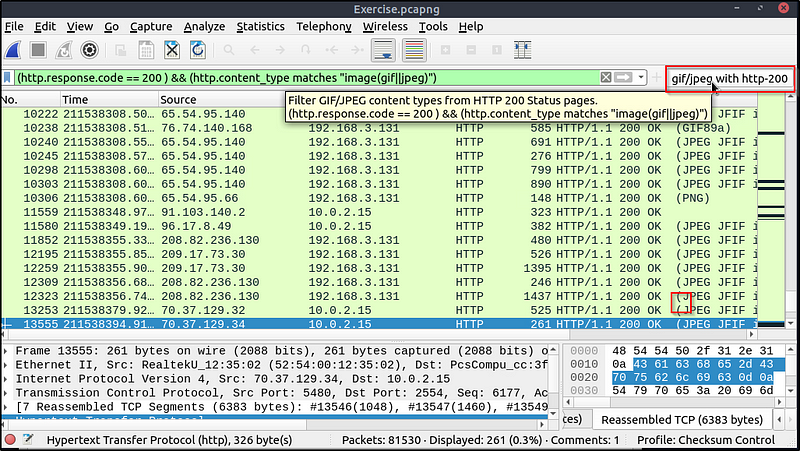
Use the existing filtering button to filter the traffic. What is the number of displayed packets?
Ans: 261
Click the button for the “Checksum Control” profile and it will populate the filter with the built-in filter.
Thanks for reading! Happy learning 🙂
 Igor_sec's Blog
Leave a comment