

Room Link: https://tryhackme.com/room/malbuster
Task 1 Introduction
This room aims to be a practice room for Dissecting PE Headers and Static Analysis 1. In this scenario, you will act as one of the Reverse Engineers that will analyse malware samples based on the detections reported by your SOC team.
Prerequisites
This room requires basic knowledge of Malware Static Analysis. We recommend going through the following rooms before attempting this challenge.
Scenario
You are currently working as a Malware Reverse Engineer for your organisation. Your team acts as a support for the SOC team when detections of unknown binaries occur. One of the SOC analysts triaged an alert triggered by binaries with unusual behaviour. Your task is to analyse the binaries detected by your SOC team and provide enough information to assist them in remediating the threat.
Investigation Platforms

The team has provided two investigation platforms, a FLARE VM and a REMnux VM. You may utilise the machines based on your preference.
If you prefer FLARE VM, you may start the machine attached to this task. Else, you may start the machine on the task below to start REMnux VM.
The machine will start in a split-screen view. In case the VM is not visible, use the blue Show Split View button at the top-right of the page.
You may also use the following credentials for alternative access via Remote Desktop (RDP):
| Username | administrator |
| Password | letmein123! |
| IP Address | MACHINE_IP |
Lastly, you may find the malware samples on C:\Users\Administrator\Desktop\Samples.
WE ADVISE YOU NOT TO DOWNLOAD THE MALWARE SAMPLES TO YOUR HOST.
Answer the questions below
I am now ready to analyse malware samples!
Task 2 Challenge Questions
Investigation Platform
If you prefer REMnux, you may use the machine attached to this task by accessing it via the split-screen view.
Else, start the machine from the previous task to spin up the FLARE VM.
In addition, you can find the malware samples provided by the SOC team at /home/ubuntu/Desktop/Samples.
The machine will start in a split-screen view. In case the VM is not visible, use the blue Show Split View button at the top-right of the page.
WE ADVISE YOU NOT TO DOWNLOAD THE MALWARE SAMPLES TO YOUR HOST.
Good luck!
Answer the questions below
Based on the ARCHITECTURE of the binary, is malbuster_1 a 32-bit or a 64-bit application? (32-bit/64-bit)
Answer: 32-bit
What is the MD5 hash of malbuster_1?
Answer: 4348da65e4aeae6472c7f97d6dd8ad8f
Open the sample with PEStudio.
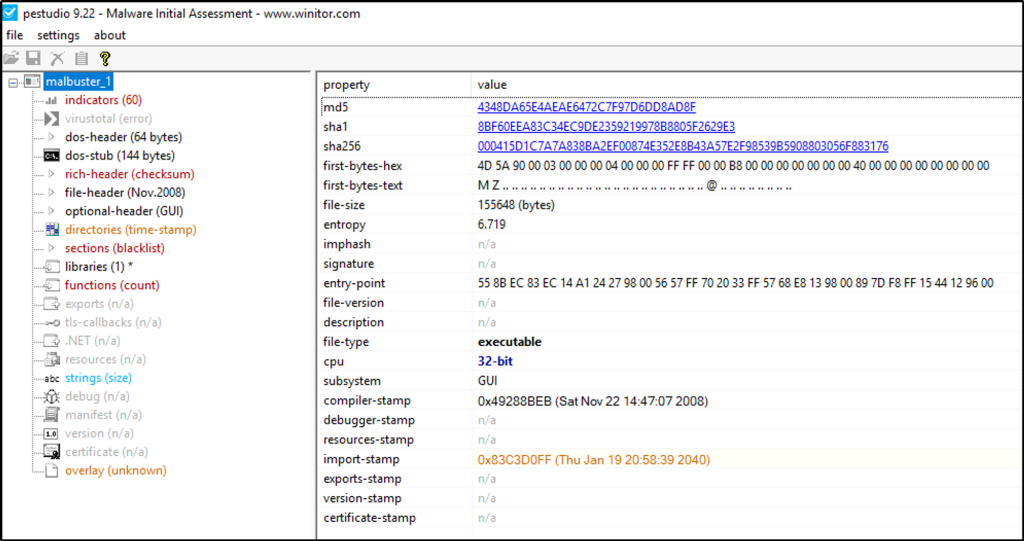
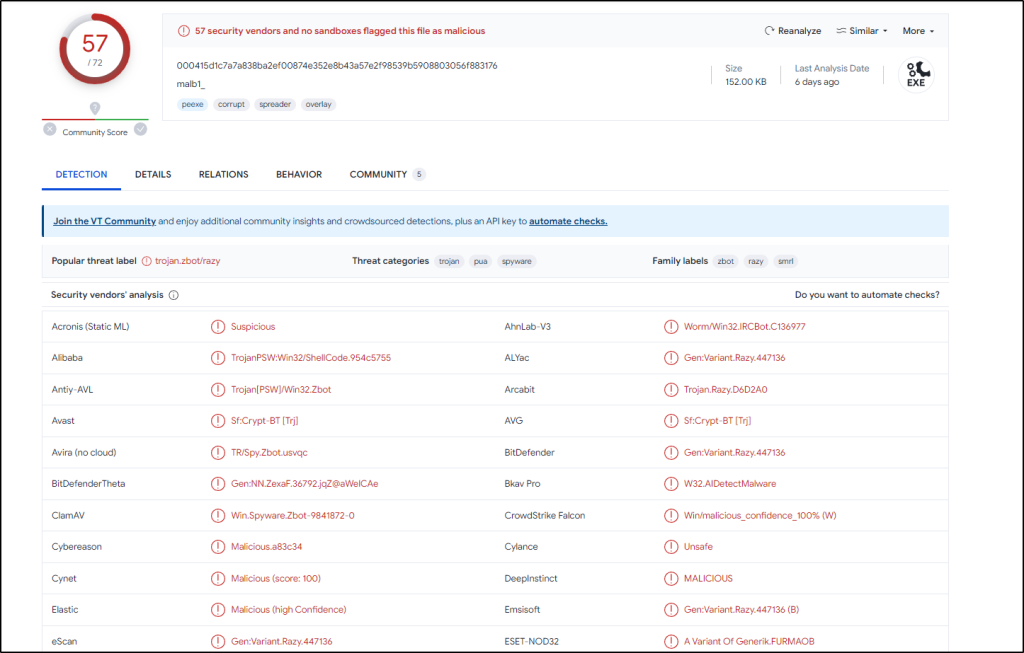
Using the hash, what is the number of detections of malbuster_1 in VirusTotal?
Answer: 57
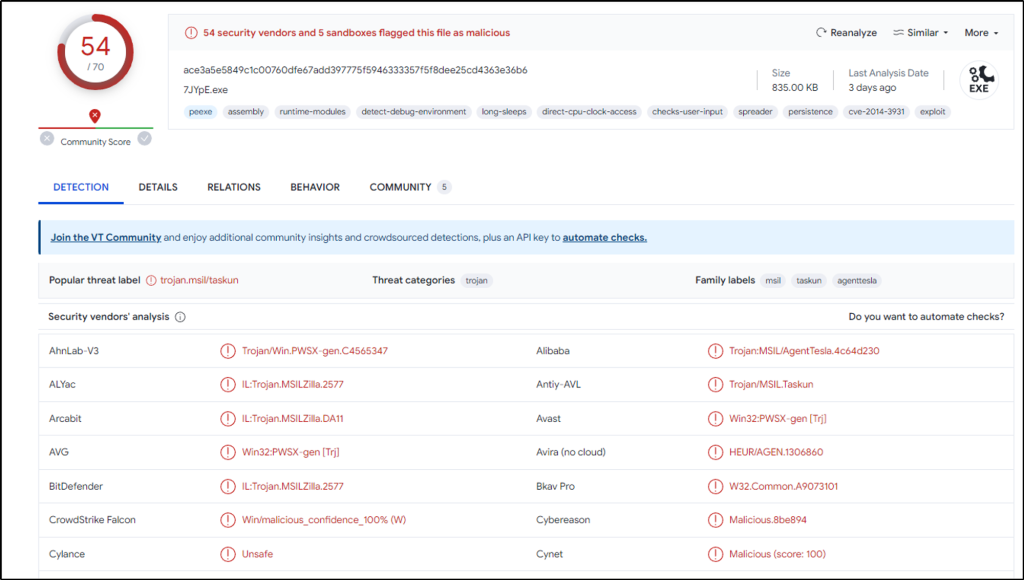
Based on VirusTotal detection, what is the malware signature of malbuster_2 according to Avira?
Answer: HEUR/AGEN.1202219
One of the things where a vendor might update their labels or signature for a malicious file.
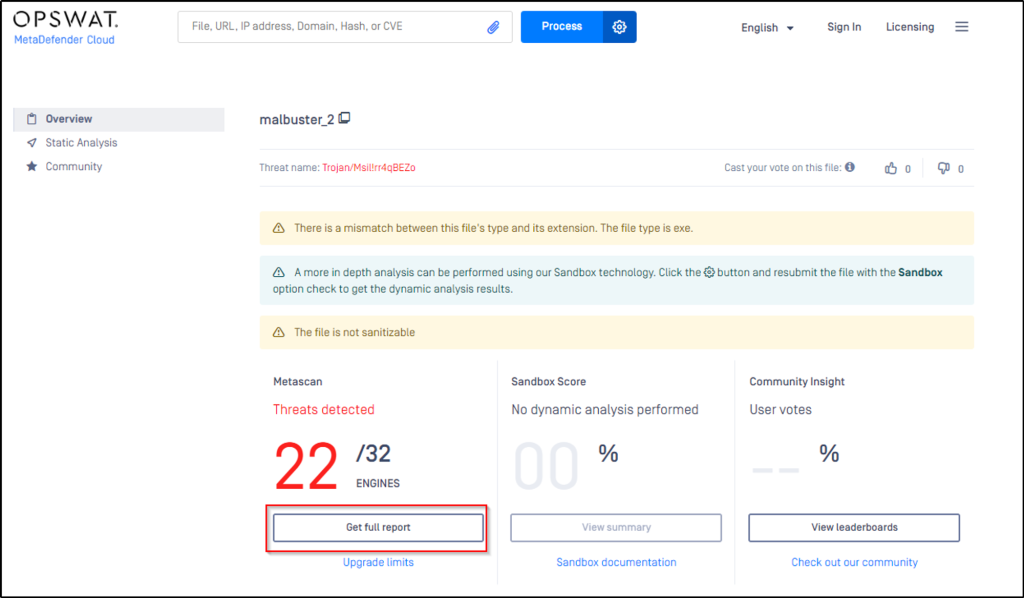
Even from a different website, the signature is the same with VirusTotal at this time of writing.
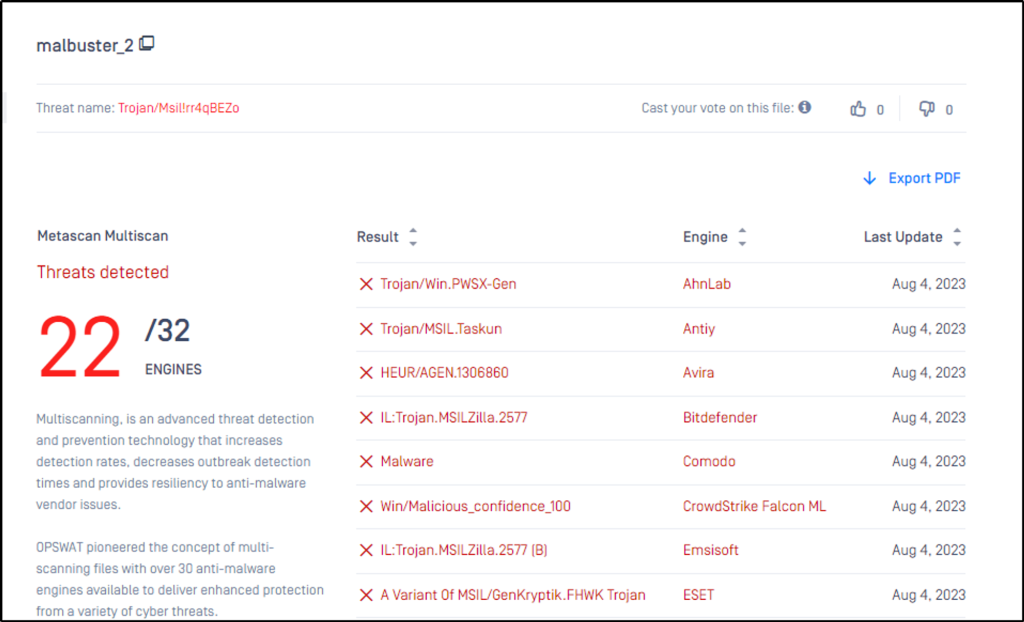
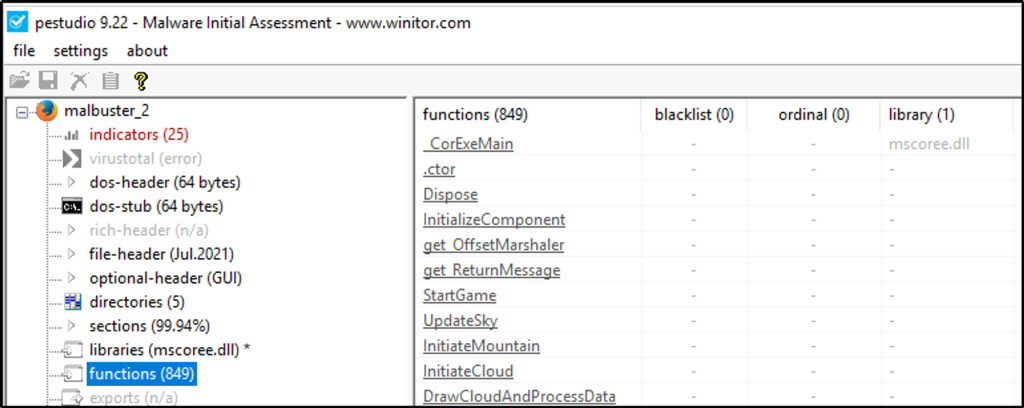
malbuster_2 imports the function _CorExeMain. From which DLL file does it import this function?
Answer: mscoree.dll
Open the sample with PEStudio. We see the function and the DLL library being called.
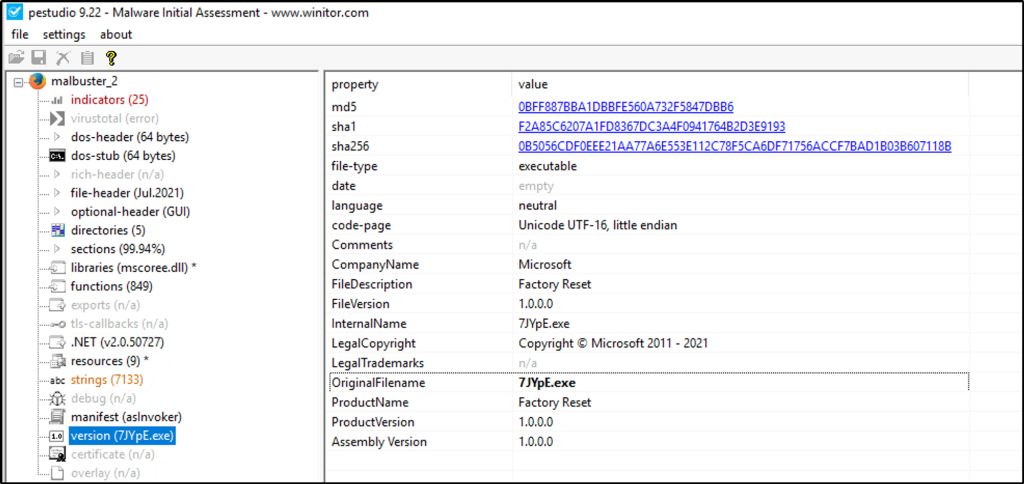
Based on the VS_VERSION_INFO header, what is the original name of malbuster_2?
Answer: 7JYpE.exe
Still on PEStudio, we can also see the original file name of the sample.
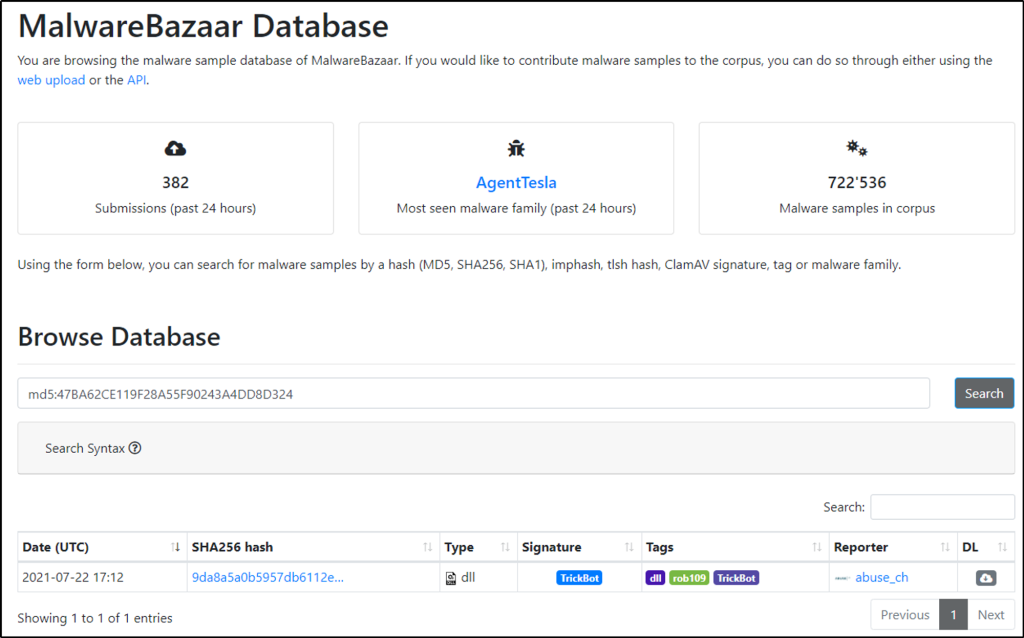
Using the hash of malbuster_3, what is its malware signature based on abuse.ch?
Answer: TrickBot
Use MalwareBazaar for this task.
Using the hash of malbuster_4, what is its malware signature based on abuse.ch?
Answer: Zloader
Use MalwareBazaar for this task.

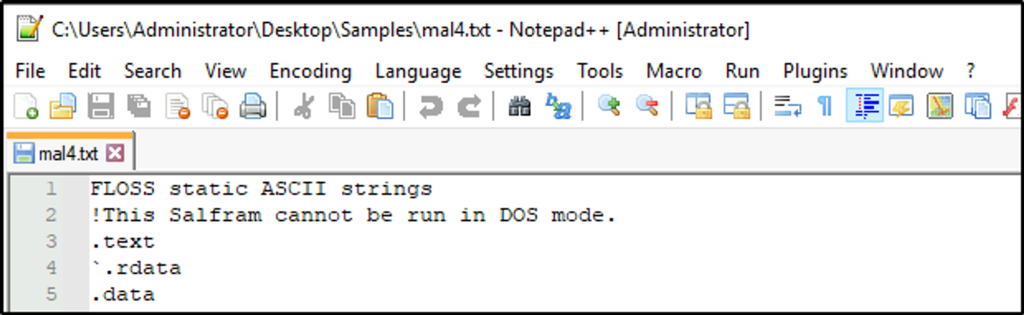
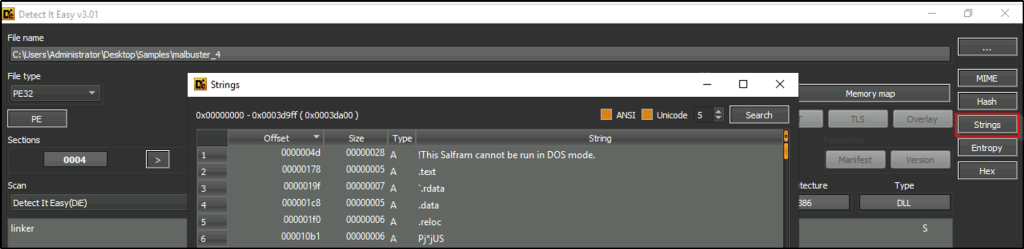
What is the message found in the DOS_STUB of malbuster_4?
Answer: !This Salfram cannot be run in DOS mode.
There are a few ways on how to get this. The following are just a few on how to get it.
Using PEStudio.

Using floss to output strings into a file.

Using Detect It Easy.
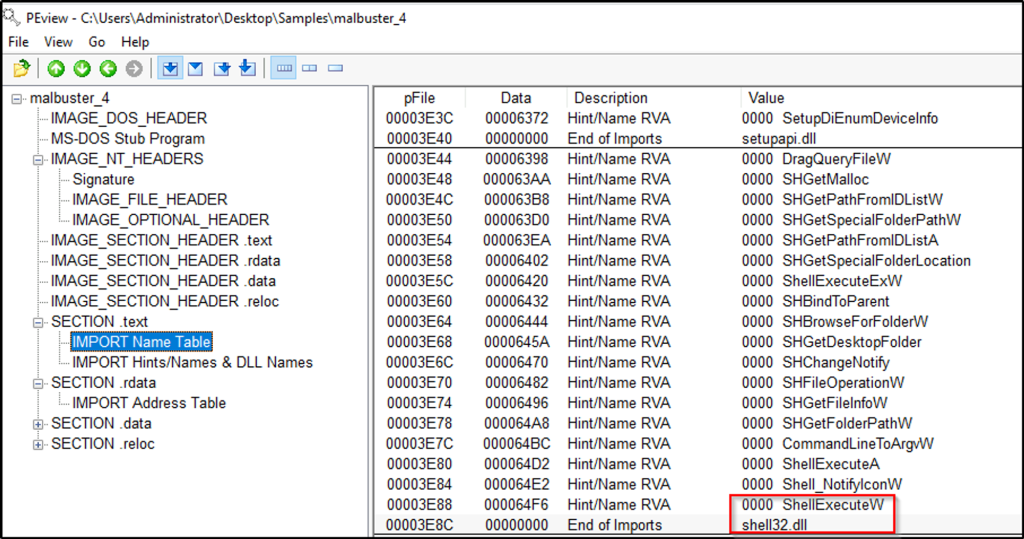
malbuster_4 imports the function ShellExecuteA. From which DLL file does it import this function?
Answer: shell32.dll
Open the sample with PEview and go to “SECTION.text”. Click on the “IMPORT Name Table” and search for the function.
Using capa, how many anti-VM instructions were identified in malbuster_1?
Answer: 3
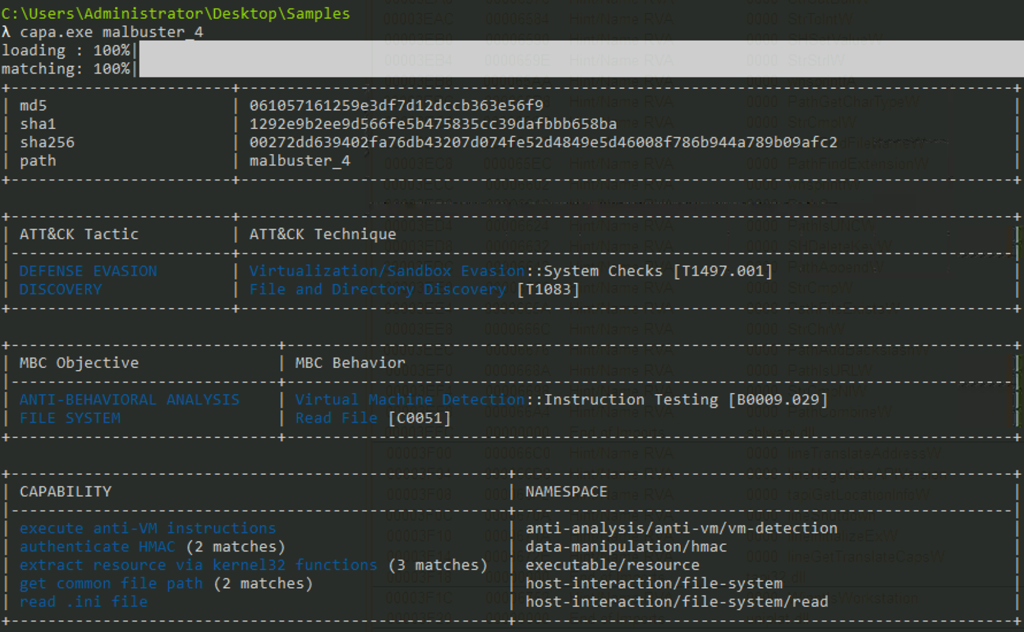
Use CAPA to analyze the malware.

Using capa, which binary can log keystrokes?
Answer: malbuster_3
Use CAPA to analyze the malware.


Using capa, what is the MITRE ID of the DISCOVERY technique used by malbuster_4?
Answer: T1083
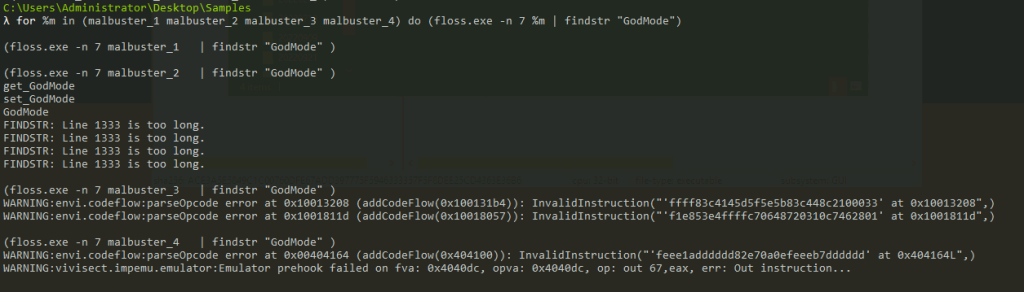
Which binary contains the string GodMode?
Answer: malbuster_2
We can use the floss command and create a for loop command to iterate over the samples.
for %m in (malbuster_1 malbuster_2 malbuster_3 malbuster_4) do (floss.exe -n 7 %m | findstr "GodMode")
Here we can see that sample 2 contains the string being asked.
Which binary contains the string Mozilla/4.0 (compatible; MSIE 6.0; Windows NT 5.1; SV1)?
Answer: malbuster_1
We could also use the same technique.
for %m in (malbuster_1 malbuster_2 malbuster_3 malbuster_4) do (floss.exe -n 40 %m | findstr "Mozilla/4.0 (compatible; MSIE 6.0; Windows NT 5.1; SV1)")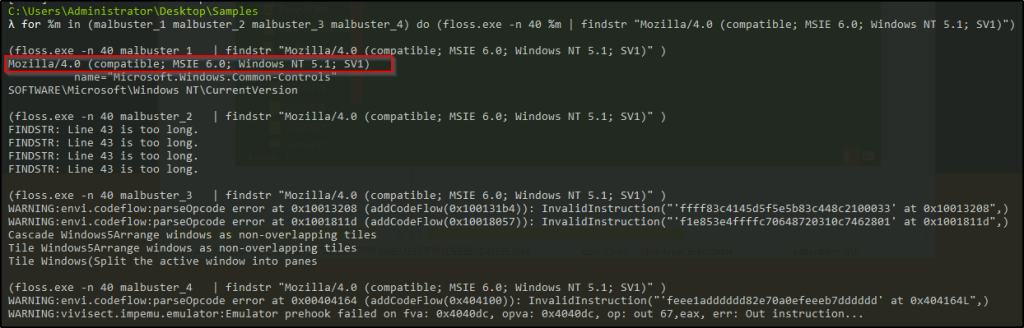
Until next time. 🙂
 Igor_sec's Blog
Leave a comment